
Arduino Crash Course
Welcome to Lesson 5 of the Crash Course. Please leave any comments or questions you have as comments directly on the post (or you can fill out the contact form if you prefer to contact me directly).
If you are enjoying the crash course so far, please share with your like-minded friends and follow us on Facebook.
Let’s get onto the lesson. In this lesson of the Arduino Crash Course, we will learn about motors, and control one type of motor known as the servo motor. Future lessons, we will also control DC and stepper motors. If you bought this kit from Elegoo which I recommended on the main Arduino Crash Course page, all the parts needed for these lessons will be included in the kit.
01
Parts Needed
If you didn’t buy the kit from Elegoo (or some similar kit made for arduino), please ensure the Servo motor can run with 5V in and does not require more current than an Arduino Uno GPIO pin can supply (40mA per pin).
02
What Types of Motors Exist?
There are 3 major categories of motors that each have advantages and disadvantages of each.
Servo Motor
Let’s start with the motor we will be using in this lesson. A servo motor is actually (usually) a combination of 4 components: a DC Motor, a gearing set, a control circuit, and a potentiometer (or some other position form of a position-sensor such as a rotary encoder). In other words, a servo motor is actually a DC motor that is self-contained, thus making it easier (usually) to use. Servo motors typically have 3 wires: power, ground, and control.
Servo Motors unfortunately only rotate 180º (some rotate slightly more, but none will have rotate freely like the other motors). Power to servo motors is continually applied, and because of this, servo motors will hold the position (holding torque), and the control circuit will control the current to the motor based on the data coming in through the control pin (more on this later).
Good examples of when to use a servo motor is for turning wheel axis for an RC car (since it only needs limited range and usually you won’t be turning a wheel beyond 90º in each direction to make a turn), or a rudder for a boat (similar reasoning).
DC Motor
A DC motor is simply a Direct Current motor (so theoretically, all other motors that run on direct current is a subset of DC motors). DC motors have 2 wires, power and ground. Because it doesn’t have a built in circuit control and a built-in position sensor, that needs to be taken into account if you need specific control of how far to turn a motor. DC motors come in a variety of “flavors” based on how they are constructed. We won’t go into too much detail on the different types of DC Motors, but if you are interested, https://www.quantumdev.com/brushless-motors-vs-brush-motors-whats-the-difference/.
DC motors usually run at a much higher RPM (rotations per minute) than the other types of motors discussed here. DC motors are controlled using PWM (more on this later), but instead of controlling the direction like a Servo Motor, PWM is used to control the speed of the motor.
A good example for a proper use of a DC motor is the propulsion motor to drive an RC car.
Stepper Motor
Stepper motors are, as the name suggests, are motors that move in steps. The main characteristic (other than holding torque) is the granularity of the step (in either degrees, or number of steps in a full 360º rotation). A stepper motor uses electromagnets arranged evenly around a central gear to define the position it is in.
Stepper motors are typically slower motors, but are much more precise, due to the electromagnetic steps. In a 200 steps/revolution stepper motor, it will always rotate exactly 1.8º each step it takes.
Stepper motors are commonly found in CNC machines and/or 3D printing machines for controlling each axis.
03
PWM – Pulse Width Modulation
Pulse Width Modulation (will be referred to as PWM from here on in this Arduino Crash Course) is just a fancy word that represents turning on/off a digital signal usually at a high rate. PWM is used in many different ways, such as controlling motors, reducing energy waste when converting power, to controlling ICs or even LEDs.
Before we go further, we must understand some terms. A period is the amount of time in one cycle and is measured in Hz (Hertz). So if you have a 100KHz frequency PWM at 50% duty cycle, that means that each period is 10µs consisting of 5µs of digital on (HIGH) and 5µs digital off (LOW).
We can see other examples in the following picture (from wikipedia):
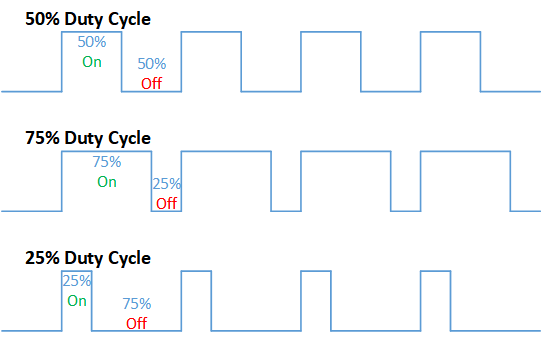
By looking at this, you may be visualizing how it can be used in a way to be more efficient in power conversions. Hopefully you can also visualize how you can use PWM as a way to communicate. If you have ever seen what have been called NeoPixel LED strips, the WS2812B IC connected to each LED uses a similar communication protocol to control the Red/Green/Blue of each LED. We may get to controlling these in a future lesson in this Arduino Crash Course (or part of a more advanced post), but if you are interested the strip looks like this (I have this exact set and works great):

NOTE: You cannot power these (or most LED strips) with Arduino’s directly, but you can control them. There are plenty of resources online if you want to try to build something with them.
PWM can also be used to simulate Analog, in essence you can make a simplified DAC (digital to analog conversion). But being that DAC ICs 
04
Back To Servo Motors
As stated earlier in this lesson, a servo motor has 3 connection wires: a ground (usually brown or black), power (usually red), and a control/signal (usually orange).
Luckily for us, there is a Servo library available to allow us to focus on what we want to do as opposed to bog down on controlling the servo via PWM: https://www.arduino.cc/en/reference/servo. But as should be expected if you have been following along with this Arduino crash course, we don’t simple but we want to learn. So let’s delve into the library code to see exactly what it is doing (https://github.com/arduino-libraries/Servo).
Let’s start with the Servo.cpp write function:
void Servo::write(int value)
{
  if(value < MIN_PULSE_WIDTH)
  {  // treat values less than 544 as angles in degrees (valid values in microseconds are handled as microseconds)
    if(value < 0) value = 0;
    if(value > 180) value = 180;
    value = map(value, 0, 180, SERVO_MIN(),  SERVO_MAX());
  }
  this->writeMicroseconds(value);
}
In this function, we see that we are resetting any value < 0 to 0 and > 180 to 180. Then we see the map function which converts the degrees value (from 0º to 180º) to the servo min and max modulation (more details on this map function https://www.arduino.cc/reference/en/language/functions/math/map/).
If you peer into the writeMicroseconds function of the Servo class, you will notice a call of analogWrite(). analogWrite is the PWM magic (handled by Arduino library for you): https://www.arduino.cc/reference/en/language/functions/analog-io/analogwrite/.
Please note, the Arduino Uno uses PWM on pins 3, 5, 6, 9, 10, 11 with a frequency: 490 Hz (pins 5 and 6: 980 Hz). Also, since Arduino is 8 bit, the range you can send via PWM is 0-255 (2^8 – 1).
Side Note: You may notice as you are perusing the documentation that the analogRead takes values between 0 and 1023. Why? Well because the Arduino has a 10bit ADC (analog-to-digital converter).
05
Let’s Build

The wiring is very simple. So why did we choose pin 9? Well we need to use a pin that has PWM (again, reference https://www.arduino.cc/reference/en/language/functions/analog-io/analogwrite/ to know what pins can send PWM).
Like said earlier in this lesson, and hopefully as you perused through the Servo library, you have confirmed that the Servo motor’s position is controlled by the pulse width. The smaller the pulse width, the more counter-clockwise the servo motor turns and vice versa.
Now that we have wired up our servo motor, try to think of code that will make the motor sweep from min to max to min and repeat.
06
Great! All Wired Up! Let’s Code!
Let’s go through the GPIO pins we are using on the Arduino and note where it’s connected:
- Pin 9 – Output – Control of Servo (orange wire)
For the code, we look at the reference for Servo again and declare our Servo and a variable to hold the current position:
https://www.arduino.cc/en/reference/servo
#define SERVOPIN 9

#include <Servo.h>

Servo theMotor;
int pos = 0;
Now our setup method is rather straightforward, we want to call the attach to our motor instance to the pin the motor is attached to.
void setup() {
  theMotor.attach(SERVOPIN)
}
Finally, we want to write our loop function. Remember, servos can only go from 0º to roughly 180º. So to go from min to max back to min, we just want to loop through each degree (we will increment/decrement by 5º at a time).
Let’s get writing!
void loop() {
  for (pos = 0; pos <= 180; pos += 5) {
    theMotor.write(pos);
    delay(30);
  }
  for (pos = 180; pos >= 0; pos -= 5) {
    theMotor.write(pos);
    delay(30);
  }
}
What’s with the delay? Well, even though we set are commanding the motor to move 5º at a time, it takes time for the motor to physically move from where it was to where it needs to be. One thing to take note of is the speed of the servo is the same no matter how many degrees it needs to rotate (try it out!).
07
What’s Next
Great! Another lesson down in the Arduino Crash Course. We now know how to control servo motors! How can we expand this simple wiring to be more beneficial?
- Connect 2 buttons to the arduino: a forward and reverse button, if the forward button is pushed, move the servo xº clockwise (increase the position) and if the reverse button is pushed, move the servo xº counter-clockwise.
- Use the serial communication to print out the position (in degrees) that represents the state of the servo
- If you are brave, try controlling the Servo using just the analogWrite function (i.e. don’t use the Servo library).
I hope you enjoyed this lesson and the excitement is continuously growing as you work through this Arduino Crash Course. See you next time! Again, if you are enjoying this Arduino Crash Course, please share with others and join us on Facebook.