Arduino Crash Course

Welcome to Lesson 5 of the Crash Course. Please leave any comments or questions you have as comments directly on the post (or you can fill out the contact form if you prefer to contact me directly).  

If you are enjoying the crash course so far, please share with your like-minded friends and follow us on Facebook.

Let’s get onto the lesson.  In this lesson of the Arduino Crash Course, we will learn about motors, and control one type of motor known as the servo motor.  Future lessons, we will also control DC and stepper motors.  If you bought this kit from Elegoo which I recommended on the main Arduino Crash Course page, all the parts needed for these lessons will be included in the kit.

01

Parts Needed


If you didn’t buy the kit from Elegoo (or some similar kit made for arduino), please ensure the Servo motor can run with 5V in and does not require more current than an Arduino Uno GPIO pin can supply (40mA per pin).

02

What Types of Motors Exist?

There are 3 major categories of motors that each have advantages and disadvantages of each.

Servo Motor

Let’s start with the motor we will be using in this lesson.  A servo motor is actually (usually) a combination of 4 components: a DC Motor, a gearing set, a control circuit, and a potentiometer (or some other position form of a position-sensor such as a rotary encoder).  In other words, a servo motor is actually a DC motor that is self-contained, thus making it easier (usually) to use.  Servo motors typically have 3 wires: power, ground, and control.

Servo Motors unfortunately only rotate 180º (some rotate slightly more, but none will have rotate freely like the other motors).  Power to servo motors is continually applied, and because of this, servo motors will hold the position (holding torque), and the control circuit will control the current to the motor based on the data coming in through the control pin (more on this later).

Good examples of when to use a servo motor is for turning wheel axis for an RC car (since it only needs limited range and usually you won’t be turning a wheel beyond 90º in each direction to make a turn), or a rudder for a boat (similar reasoning).

DC Motor

A DC motor is simply a Direct Current motor (so theoretically, all other motors that run on direct current is a subset of DC motors).  DC motors have 2 wires, power and ground.  Because it doesn’t have a built in circuit control and a built-in position sensor, that needs to be taken into account if you need specific control of how far to turn a motor.  DC motors come in a variety of “flavors” based on how they are constructed.  We won’t go into too much detail on the different types of DC Motors, but if you are interested, https://www.quantumdev.com/brushless-motors-vs-brush-motors-whats-the-difference/.  

DC motors usually run at a much higher RPM (rotations per minute) than the other types of motors discussed here.  DC motors are controlled using PWM (more on this later), but instead of controlling the direction like a Servo Motor, PWM is used to control the speed of the motor.

A good example for a proper use of a DC motor is the propulsion motor to drive an RC car.

Stepper Motor

Stepper motors are, as the name suggests, are motors that move in steps.  The main characteristic (other than holding torque) is the granularity of the step (in either degrees, or number of steps in a full 360º rotation).  A stepper motor uses electromagnets arranged evenly around a central gear to define the position it is in.  

Stepper motors are typically slower motors, but are much more precise, due to the electromagnetic steps.  In a 200 steps/revolution stepper motor, it will always rotate exactly 1.8º each step it takes. 

Stepper motors are commonly found in CNC machines and/or 3D printing machines for controlling each axis. 

03

PWM – Pulse Width Modulation

Pulse Width Modulation (will be referred to as PWM from here on in this Arduino Crash Course) is just a fancy word that represents turning on/off a digital signal usually at a high rate.  PWM is used in many different ways, such as controlling motors, reducing energy waste when converting power, to controlling ICs or even LEDs. 

Before we go further, we must understand some terms.  A period is the amount of time in one cycle and is measured in Hz (Hertz).  So if you have a 100KHz frequency PWM at 50% duty cycle, that means that each period is 10µs consisting of 5µs of digital on (HIGH) and 5µs digital off (LOW).

We can see other examples in the following picture (from wikipedia):
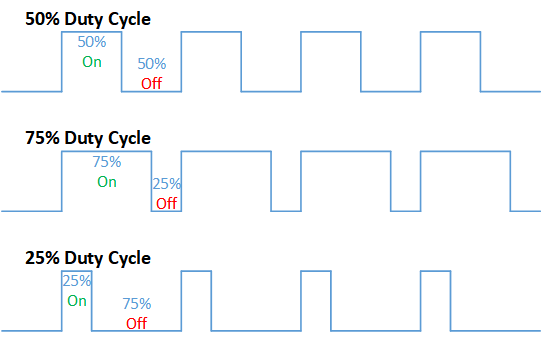
By looking at this, you may be visualizing how it can be used in a way to be more efficient in power conversions.  Hopefully you can also visualize how you can use PWM as a way to communicate.  If you have ever seen what have been called NeoPixel LED strips, the WS2812B IC connected to each LED uses a similar communication protocol to control the Red/Green/Blue of each LED.  We may get to controlling these in a future lesson in this Arduino Crash Course (or part of a more advanced post), but if you are interested the strip looks like this (I have this exact set and works great):


NOTE: You cannot power these (or most LED strips) with Arduino’s directly, but you can control them.  There are plenty of resources online if you want to try to build something with them.

PWM can also be used to simulate Analog, in essence you can make a simplified DAC (digital to analog conversion).  But being that DAC ICs are relatively cheap, and much more accurate than an Arduino can be, building a DAC using PWM from Arduino should be done strictly as a learning exercise and not part of a final design solution.


04

Back To Servo Motors

As stated earlier in this lesson, a servo motor has 3 connection wires: a ground (usually brown or black), power (usually red), and a control/signal (usually orange). 

Luckily for us, there is a Servo library available to allow us to focus on what we want to do as opposed to bog down on controlling the servo via PWM: https://www.arduino.cc/en/reference/servo. But as should be expected if you have been following along with this Arduino crash course, we don’t simple but we want to learn.  So let’s delve into the library code to see exactly what it is doing (https://github.com/arduino-libraries/Servo).

Let’s start with the Servo.cpp write function:

void Servo::write(int value)
{
  if(value < MIN_PULSE_WIDTH)
  {  // treat values less than 544 as angles in degrees (valid values in microseconds are handled as microseconds)
    if(value < 0) value = 0;
    if(value > 180) value = 180;
    value = map(value, 0, 180, SERVO_MIN(),  SERVO_MAX());
  }
  this->writeMicroseconds(value);
}

In this function, we see that we are resetting any value < 0 to 0 and > 180 to 180.  Then we see the map function which converts the degrees value (from 0º to 180º) to the servo min and max modulation (more details on this map function https://www.arduino.cc/reference/en/language/functions/math/map/).

If you peer into the writeMicroseconds function of the Servo class, you will notice a call of analogWrite().  analogWrite is the PWM magic (handled by Arduino library for you): https://www.arduino.cc/reference/en/language/functions/analog-io/analogwrite/.  

Please note, the Arduino Uno uses PWM on pins 3, 5, 6, 9, 10, 11 with a frequency: 490 Hz (pins 5 and 6: 980 Hz).  Also, since Arduino is 8 bit, the range you can send via PWM is 0-255 (2^8 – 1).  

Side Note: You may notice as you are perusing the documentation that the analogRead takes values between 0 and 1023.  Why? Well because the Arduino has a 10bit ADC (analog-to-digital converter).

05

Let’s Build

The wiring is very simple.  So why did we choose pin 9?  Well we need to use a pin that has PWM (again, reference https://www.arduino.cc/reference/en/language/functions/analog-io/analogwrite/ to know what pins can send PWM).  

Like said earlier in this lesson, and hopefully as you perused through the Servo library, you have confirmed that the Servo motor’s position is controlled by the pulse width.  The smaller the pulse width, the more counter-clockwise the servo motor turns and vice versa. 

Now that we have wired up our servo motor, try to think of code that will make the motor sweep from min to max to min and repeat.

06

Great! All Wired Up! Let’s Code!

Let’s go through the GPIO pins we are using on the Arduino and note where it’s connected:


  • Pin 9 – Output – Control of Servo (orange wire)

For the code, we look at the reference for Servo again and declare our Servo and a variable to hold the current position: 

https://www.arduino.cc/en/reference/servo

#define SERVOPIN 9

#include <Servo.h>

Servo theMotor;
int pos = 0;

Now our setup method is rather straightforward, we want to call the attach to our motor instance to the pin the motor is attached to.

void setup() {
  theMotor.attach(SERVOPIN)
}

Finally, we want to write our loop function.  Remember, servos can only go from 0º to roughly 180º.  So to go from min to max back to min, we just want to loop through each degree (we will increment/decrement by 5º at a time).

Let’s get writing!

void loop() {
  for (pos = 0; pos <= 180; pos += 5) { 
    theMotor.write(pos);              
    delay(30);                       
  }
  for (pos = 180; pos >= 0; pos -= 5) { 
    theMotor.write(pos);              
    delay(30);                       
  }
}

What’s with the delay?  Well, even though we set are commanding the motor to move 5º at a time, it takes time for the motor to physically move from where it was to where it needs to be.  One thing to take note of is the speed of the servo is the same no matter how many degrees it needs to rotate (try it out!).

07

What’s Next

Great! Another lesson down in the Arduino Crash Course.  We now know how to control servo motors! How can we expand this simple wiring to be more beneficial?


  • Connect 2 buttons to the arduino: a forward and reverse button, if the forward button is pushed, move the servo xº clockwise (increase the position) and if the reverse button is pushed, move the servo xº counter-clockwise.
  • Use the serial communication to print out the position (in degrees) that represents the state of the servo
  • If you are brave, try controlling the Servo using just the analogWrite function (i.e. don’t use the Servo library).

I hope you enjoyed this lesson and the excitement is continuously growing as you work through this Arduino Crash Course.  See you next time!  Again, if you are enjoying this Arduino Crash Course, please share with others and join us on Facebook.
Arduino Crash Course

Welcome to the 2nd Project of this Arduino Crash Course.  In this project you will leverage all the knowledge obtained through the first 4 lessons of this crash course to provide a solution without any wiring or code provided.  You can do it, I know you can!

Enjoying the Arduino Crash Course?  Follow us on Facebook and share with all your friends!

Before we jump into the project, I think now is a great time to talk about multimeters, and why everyone building electrical circuits needs one.

01

Multimeters – What Is That

A multimeter is a very important tool for every electronics hobbyist (in fact, every electronic hobbyist should have at least 2 of them – more on this later). 

If you don’t have a multimeter yet, I recommend purchasing this one by Klein Tools MM700.  If you want a cheaper multimeter at first, then I recommend the Klein Tools MM300: 


So why Klein Tools?  Klein Tools is a very reputable brand and these multimeters are well built and if taken proper care of will last forever!  I have had my fair share of cheap multimeters, and they don’t last long.  Trust me, get a Klein Tools, and you won’t have to worry about it breaking in the middle of a project (very frustrating!).

A multimeter is an all-in-one tool where you can measure voltage, amperage, resistance, and continuity testing (all of these explained below and how to do it with most common multimeters on the market).  

Before we get started, most multimeters have three inputs, but only two leads.  The middle input is usually the ground input, where you would want to plug in the black lead (NOTE: there is no physical difference in the leads that are colored Black and Red, it’s just common practice to use Black for Ground, and Red for Positive).  If you are measuring volts or small amounts of current usually less than 200mA (max is usually displayed on the unit itself, DO NOT EXCEED THE CURRENT LIMITS AS IT CAN BREAK THE MULTIMETER).  If you are ever measuring current, I would always recommend to connect it to the other input (usually 10A max).  Why?  Well because the left input with max Amps is usually fused, and the fuse may blow, but your multimeter itself will not be broken (would just need to replace the internal fuse).  With that said, I always like to put the leads back into the right side whenever I am storing my multimeter away.

02

MultiMeter – Measuring Voltages

One of the main functions of a multimeter is measure voltages (also known as a voltmeter).  It does this by placing the Positive lead (red) to the positive of what you are trying to measure, and the negative lead (black) to the negative.  Ensure that the ground (black) is connected to the middle input port on the multimeter, and the positive (red) lead is connected into right side (usually denoted by what it measures as well as a max Amperage it can measure).  

If you don’t have an auto-sensing multimeter, you will have a dial.  You will need to change the dial to that the expected measurement is below the value selected, but more than the next lowest available measurement.  For example, if you wanted to measure the voltage of a 9V battery, you will select 20V, because you are expecting around 9V, and 2V (the next lowest available option on most multimeters) would not be enough. 

If you are measuring and the multimeter is showing 0 (and you are sure the connection is proper), then you may have to change the dial to a higher (or sometimes lower) source.

You can measure whole circuits, or individual components for their voltage (note: ground doesn’t always mean 0V in this case, it’s just measuring the starting voltage and the ending voltage, and providing the differential as a measurement).  If you were to measure the voltage from the positive side of an LED, to and connect ground to the negative side of an LED, you will get the forward voltage of the LED.  Take the original voltage supply and subtract out the forward voltage, and you have the voltage dropout caused by the LED.  Go back to previous lessons in this Arduino Crash Course and measure it.  How close do your LED’s match the table provided in Lesson 1?

03

MultiMeter – Measuring Current

Like I said in the intro to this project, I always prefer to switch the red lead to the fused input whenever measuring current (even if I know the measured current will not even come close to the max I can measure on the right input). 

To measure current, your 2 leads are no longer positive and negative, but actually become a part of the circuit itself.  How this works is you break up the circuit you are working on, and connect the 2 leads to reform the “break” (in essence you are making the current flow into the multimeter).

I can’t stress this enough.  It is extremely important that you do not try to measure above the max rating given on the multimeter!  Even if you are on the fused input (who likes dissembling just to replace a fuse).  

To start measuring, disconnect all power and ensure that all capacitors in your circuit are completely discharged.  Once you are sure that the circuit is powered down, find a part of the circuit where you want to measure the current (I usually am testing the full circuit, so I will simply connect the red lead from the power source to the entry point of my circuit – or Arduino).  Granted, if you are using USB as the power source, this can get a little tricky unless, but you can measure the current from any of the pins or any other “sub-circuit”.  

You will need to adjust the dial, similar to how you adjusted it for voltages to ensure the multimeter knows the rough range of what it is measuring.


04

Multimeter – Measuring Resistance

Have a resistor where the bands are wiped off, or you can’t make out whether a color is brown or red or whatever?  Or simply you want to get the real value of the resistance with the tolerance already incorporated?

Multimeter can help.  First, switch back the red lead to the right input so we can measure Resistances.  Then on the dial find where the expected range is.  Then simply connect the leads together (much simpler if using alligator clips!).  That’s it.  The multimeter will calculate the resistance of the resistor for you.  

Now say you didn’t pay attention or you skipped Lesson 1 on Ohm’s Law, and you skipped the section on series or parallel resistance or simply too lazy to do the calculation.  Well you can use the multimeter.  Connect the leads of 2 or more resistors to each lead of the multimeter to get the parallel resistance value.  If you want to calculate the series resistance, well connect the multimeter to one leg of the resistor, the other leg will connect to the other resistor, and the last leg connect to the other lead.  Boom! Series resistance!

05

Multimeter – Continuity Testing

I honestly don’t think this is mentioned enough in the plethora of tutorials and how-to’s out there in the electronics hobbyist world.  This is by far my favorite feature of the multimeter and may be the one I use the most (make sure your multimeter you get has some sort of continuity testing on it). 

This is a very simple test where the multimeter will beep if the 2 ends are connected.  I use this all the time for all pins I solder to ensure that:

A.  There is a good connection from one end to the other

B.  There is no shorted pins (i.e. pin 1 is not touching anything else but pin 1).  

I am a creature of habit, but whenever I turn to continuity mode, I always test the multimeter is working by just touching the 2 leads together (this should always beep as the 2 leads are electrically connected).

Go back into other lessons in this Arduino Crash Course, and test some of the other components.  Buttons are always fun.  Remember when I said to always pick the pin diagonally from where you connected the first pin, well, you don’t have to if you know the other pin is not connected when the button is not pressed because there is no continuity.  Press the button down, and you should hear the beep as they are now connected.  Rocker switches, in the off state, no beep.  When flipped on, you should hear that beep because they are electronically connected.

06

multimeter – Summary

It’s almost impossible to get very far in this hobby without the use of a multimeter.  In fact, you will quickly notice the need for 2 multimeters (and sometime even 4 multimeters).  Perfect example of this is you want to measure the voltage and current of a circuit.  Well the multimeter can do one or the other at any given time, but have 2 connected at same time, and then you have the total Watts (review previous lesson of this Arduino crash course if you do not know what Watts are).

This all in one tool is the most important and valuable asset we have to analyze our circuits, so it is imperative to have one.

07

Project Description

OK.  It’s finally time to discuss the second project to be done in this Arduino Crash Course.  If you remember from Lesson 3 we learned about how to measure distance with the HC-SR04.  In lesson 4, we used a 16×2 LCD character display to show output.  

In this project, combine these 2 lessons to print out the distance an object is from the HC-SR04 and display the output on the LCD display.  

Once you have completed that, add a button to the schematic that toggles the distances between metric system (cm) to the imperial system (inches).  Add a rocker switch to the LED backlight.  

Finally, measure the current of the LCD display with the LED backlight on vs not on?  How much difference does the LED light make in terms of energy consumption.  Calculate the watts used in both scenarios.


Enjoy the Arduino Crash Course so far?  Join our facebook group https://www.facebook.com/Circuit-Fanatic-103372208107053/ and share this course to all your friends!


Arduino Crash Course

Welcome to Lesson 4.  We are moving along.  Please leave any comments if you have any questions (or you can fill out the contact form if you prefer to contact me directly.

In lesson 3 of the crash course, we utilized Serial communication for the first time to output the distance between an object and our sensor.  In this lesson, we will use a 16×2 LCD screen to provide output.  Where will we get what to display?  The Serial connection, but instead of this time, we will actually be reversing the direction where we type something into the Serial monitor -> data is pushed to USB connection -> into the RX pin on the Atmega -> processed by microcontroller (thanks to the code we will write) -> pushed to the LCD.  This lesson will also be the first time we leverage the use of a pre-built library that we will need to import into our code.

01

Parts Needed


If you purchased the starter kit from Lesson 1 or the Crash Course home page, the LCD display should be included.

02

What is This LCD Display

This LCD Display is a Character LCD Display.  What does that mean?  Well there are individual spots dedicated to different characters to display text.  How does this differentiate between a graphical display (such as your monitor or TV)?  Well it’s simple, a graphical LCD has all the pixels connected together so you can color any pixel to make more complex characters and/or graphics.  Each character box consists of 40 pixels (5 pixels wide, 8 pixels long)

Benefits of Character LCD Display vs. Graphical LCD

Simplicity! This may sound counter intuitive to what we are trying to learn, but there are many projects where we don’t need (or even want) the ability to draw and manage an entire pixel space (even with the help of libraries).  In this tutorial, we will be using a 16×2 or simply a 16 columns by 2 rows of characters (max 32 characters at a time).  Need more characters to display, you can get another common Character Display LCD of  20 (columns) x 4 (rows) for 80 max characters displayed at a time.  Also, with the library we are going to use, it allows us to scroll left (or right) so we can technically have an unlimited number of characters (just 32 characters will displayed at one time).  

I want to take the time here to discuss how complex the operation we are doing here that is completely abstracted away for us by the LiquidCrysal library we will use.  I highly recommend you looking at the documentation of this library.  And if you are truly brave (or want to learn how it’s doing this magic), look at the source code itself (https://github.com/arduino-libraries/LiquidCrystal/tree/master/src).  Don’t worry if you don’t understand how the code is working completely at first glance, but the best way to learn new things is seeing how it’s done “under the hood”, especially in a library that is well documented and widely used.  

03

Watts That?

Before we get into further discussion of how to connect the LCD and what each pin means, let’s take a break and go over a common way to measure energy (or power).  Watts is a very easy calculation once you know the voltage and the current of a circuit:


Watts = V * I

So what’s the big idea?  Why calculate Watts?  Well, the biggest reason to calculate watts is because it normalizes the energy usage into one characteristic.  For example, say we had a 110v (normal AC in US) with a 20 milliamp load attached to it.  This will be 2.2W (remember milliamps are .001 of an amp) of energy to run this load.  Now say a load off of a 5v power supply is 200milliamps, the total wattage here is actually 1W of power.  There is significantly more current (10x more current) flowing through 5V circuit, but the actual watts of power is more than half that of the load attached to the 110V.  Without getting into too much detail here, but having lower amperage has some major benefits being the thickness (or gauge measured in AWG) of the wiring needed to safely carry that current.  This is very common in solar arrays and battery pack building, the higher the voltage, the more watts it can produce with lower amperage (hence lower wire gauges) than similar wattage systems at lower voltages.  

In this Arduino Crash Course, we won’t go into building or controlling heavy loads, so dupont wires (typically 22AWG) is more than enough to safely connect all parts.  But it is crucial to understand the whole picture, especially since chances are you will be interested in the future to delve into LED strips (a 5M LED strip with 300 RGB LEDs on supplied with 12V can pull upwards of nearly 6amps of current – definitely can’t use 22AWG wires for that as that will be a significant fire risk).   


04

Back To Character LCD Display

OK.  After our detour of how to calculate watts, and it’s importance, time to get back onto the lesson of the Character LCD Display.  You may be wondering why a potentiometer is listed as a necessary component for this lesson!  Well if you look back to Lesson 1 of this Arduino Crash Course, you will know that a potentiometer is an adjustable resistor, so can you think of any reason why it will be included in a lesson about an LCD display? If you guess that it can control the contrast (how dark or light) the background of each character block is, then you are correct! Pat yourself on the back.  Missing potentiometer is the most common issue I have seen people have when trying to utilize this display.

Now, you may be wondering, why doesn’t the LCD display have a known resistance needed to get the perfect contrast so you would only need to place a single resistor instead of needing a way to adjust the contrast.  And that would be a great assumption to make, but each LCD display may be slightly different than others, so one resistor may work great for one, but not optimal for the next display.  If you measured the resistance of the potentiometer with perfect contrast, and replaced it with a single resistor and use the same LCD display, then it will stay at the same contrast level (although you will lose the flexibility of being able to change the contrast in different light conditions and/or different set of eyes!).

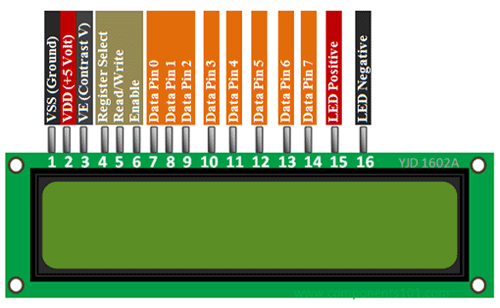
OK.  Let’s go through the pins:

Starting Left to Right:


  • VSS (Ground) – This is the ground terminal of LCD circuit
  • VDD (+5V) – This is the supply pin for the LCD.  As it states, we need to supply 5V to it
  • VE – Contrast – Remember the potentiometer, well this is the pin to control the contrast
  • Register Select – We will go into more details of what Registers are and how microcontrollers (and other more complex ICs) store basic data.  For this lesson, just view it as a way to select which segment of the display we want to “write to” (this is abstracted away in the LiquidCrystal library).  This will change between command and data registers within the LCD display.
  • Read/Write – this pin is to tell the LCD display whether or not you are writing or reading from the register selected.  Since we will be only writing to this display, we will just connect this to ground (0V is Write, 5V is Read)
  • Enable – This pin will fluctuate (thanks to the LiquidCrystal display) to ack data transmissions were successful
  • DataPins [0-7] – These are all the data pins that are being sent (since we are writing) from Arduino to the LCD display microcontroller.  We will only use this LCD display in 4-bit mode, so we will only connect to 4 of the data pins (instead of all 8).  Running it in 4-bit mode takes longer to transmit the data (still faster than the human eye) and also saves us from using 4 extra GPIO pins to control this display.  Later on the Arduino Crash Course, we will go over a very common IC called SN74HC595, which is an 8 bit shift register which allows us to send out 8 bits using only 1 pin!
  • LED Positive – Voltage in for the LED backlight (optional) 
  • LED Negative – Ground for the LED backlight (optional – although must be connected to ground if LED positive is connected).

OK, so now we know what each pin represents on the LCD display, try to think of how you will connect Arduino to this LCD display.

05

Let’s Build

Can you spot anything wrong with this wiring diagram?  Hint: keep in mind the backlight is an LED!  So we should place a resistor between either the 5v out of arduino to the LED Positive, or between the LED Negative and the ground.

Also, if we look at the diagram, you will notice we are using data pins 4-7 as our 4 bits (important to note this when we use the LiquidCrystal display in our code).

Take a few minutes and try to understand each component and why it’s connected the way it is.  While doing that, try to think of how we are going to write code (leveraging the LiquidCrystal library) before just jumping to the code.  Start by listing out the GPIO pins like we have done in previous lessons of this Arduino Crash Course.

06

Great! All Wired Up! Let’s Code!

Let’s go through the GPIO pins we are using on the Arduino and note where it’s connected:


  • Pin 12 – To Register Select
  • Pin 11 – To Enable
  • Pin 5 – To Data4 
  • Pin 4 – To Data5
  • Pin 3-  To Data6
  • Pin 2 – To Data7

If you notice here, we didn’t actually specify which pin is INPUT vs OUTPUT.  Why?  Well the LiquidCrystal display actually takes care of all of that for us, but we are only writing to the display, so all these GPIO pins will be output to the LCD display (with the exception of the enable – which the LCD display will make HIGH when it ack’s data transfer).

For the code, since we are using only 4 bit mode, we will use the following constructor (source https://www.arduino.cc/en/Reference/LiquidCrystalConstructor):

LiquidCrystal(rs, enable, d4, d5, d6, d7)

Notice, that this LiquidCrystal library only allows the use of Data pins 4-7 if using in 4 bit mode.  So if you wired your connection to use Data pins 0-3, you will need to rewire to connect to these 4 data pins.

Ok.  Now let’s start with an include statement and the defines for our pins:

#include <LiquidCrystal.h>
#define RSPin 12
#define ENPin 11
#define D4 5
#define D5 4
#define D6 3
#define D7 2

The first line includes the LiquidCrystal library and allows our sketch to then utilize all the functionality of that library.  The next lines are optional, but makes code much cleaner and easier to read.  

Now that we have defined everything, let’s go ahead and initialize everything we need in the setup method:

LiquidCrystal lcd(RSPin, ENPin, D4, D5, D6, D7);
void setup() {
  lcd.begin(16,2);
  lcd.print("hello, world!");
}

As you can see we actually define the LiquidCrystal by calling the constructor outside of the setup method.  Why?  Because we want to use the same object instance inside the loop as well.  As noted in the documentation of the LiquidCrystal display, it says we need to call begin before trying to write to the Display, and the begin function takes number of columns and number of rows the LCD display has (https://www.arduino.cc/en/Reference/LiquidCrystalBegin).  Note, if we wanted to only write to the first line, we could’ve just said the display is only 1 row (or similarly if we wanted to only write to the first 8 columns, we could have called the begin method with just 8 columns).

But what are we missing in the Setup?  Remember, we wanted to take input from Serial.  So we also need to initialize the Serial interface.  Look back on Lesson 3 of the Arduino Crash Course if you forgot how to initialize Serial (or better yet, go straight to the Arduino documentation).

Now that we have setup our LCD and initialized our Serial Communication, time for the loop function.  In this function, we want to take whatever was inputted from the Serial communication (via the Serial Monitor) and display it on the LCD.  How can we do this?  Make it a point to always check the documentation.  Serial documentation lists a bunch of different functions we can use, but the readString function looks most promising (https://www.arduino.cc/reference/en/language/functions/communication/serial/readstring/).

Let’s get writing!

void loop() {
  while(Serial.available()) {
    String in = Serial.readString();
    Serial.println(in);
    lcd.display(in);
  }
}

That seems easy enough right?  But what is this doing.  We are checking if Serial is available (this is necessary, before we call the readString function).  Once we get the input string, we then echo it back through the same Serial Communication (we receive it via the RX pin, and we send it back out via the TX pin). We then display it on the LCD. 

There are several key things that are actually wrong with this code that I want you to work through.  To help, I will point out 2 big issues:

  • readString() times out (default is 1 second, but that can be changed using setTimeout function).  The code needs to handle the case if it times out, such as printing an error message or just simply keeps the previous message on the screen until new input is received.  Another different way of handling this is to consistently feed whatever is fed into Serial one character (or 1 byte really) using the Serial.read function and pass that directly to the LCD display.  If taking this approach, you should have a serial command that clears the LCD display (or a button that clears the display).
  • readString does not cut the number of characters at all.  So if we have more than 32 characters, we either will have a chopped view of the first 32 characters, or we can leverage the scrollDisplayLeft() or scrollDisplayRight() of the LiquidCrystal library

I will leave it up to you to finish the code to fix these 2 major issues yourself.  As stated before in this Arduino Crash Course, this is not made to simply provide you with solutions, but to provide you with explanations and resources to solve problems on your own.  

07

What’s Next

Great! You were able to solve the 2 issues with the code in the previous section.  How can you expand on this lesson while leveraging other lessons of this Arduino Crash Course?  


  • Connect a button to the Arduino where the button will control whether or not to clear the LCD display (some code changes will need to be done, but you should have these tools under your belt from previous lessons in the crash course to be able to do this).
  • Connect a rocker switch to the LED backlight.  This shouldn’t require any code as it will just be a circuit addition.
  • Set up a Serial communication commands that will clear the screen and/or flip the LED backlight on/off.  This will require rewiring the LED backlight to a GPIO pin and setting it as HIGH or LOW depending on if it is off or not.  For example, setup the characters “ZZZCLEAR” as a clear command and “ZZZTOGGLE” as the LED toggle command.  The commands themselves can be anything.  You can even put the display as a command i.e. “DISPLAY=This is text to display.”, but this will obviously make your most common use case more complicated.

I hope you enjoyed this lesson and the excitement is continuously growing as you work through this Arduino Crash Course.  See you next time!

Arduino Crash Course

Decided to spice it up the design with this lesson, let me know if you like it more or want to go back.  I am always looking to improve this Arduino Crash Course to make it fun.

Anyway, onto lesson 3 of this crash course.  What if I told you this lesson you are going to be using over 40 electrical components in this lesson?  Don’t worry, a lot of these components are actually found within the sensor we are going to be using: the HC-SR04 Module (more commonly known as the ultrasonic measurement).  Now hooking up this module is fun, but we will dive into the schematic and circuitry that makes up this module instead of just plugging it into our Arduino and  getting the distance between objects.

01

Parts Needed


Going forward in all future lessons of this crash course, I won’t list breadboard and wired, it’ll just be assumed we need them for all projects!

02

What is The HC-SR04

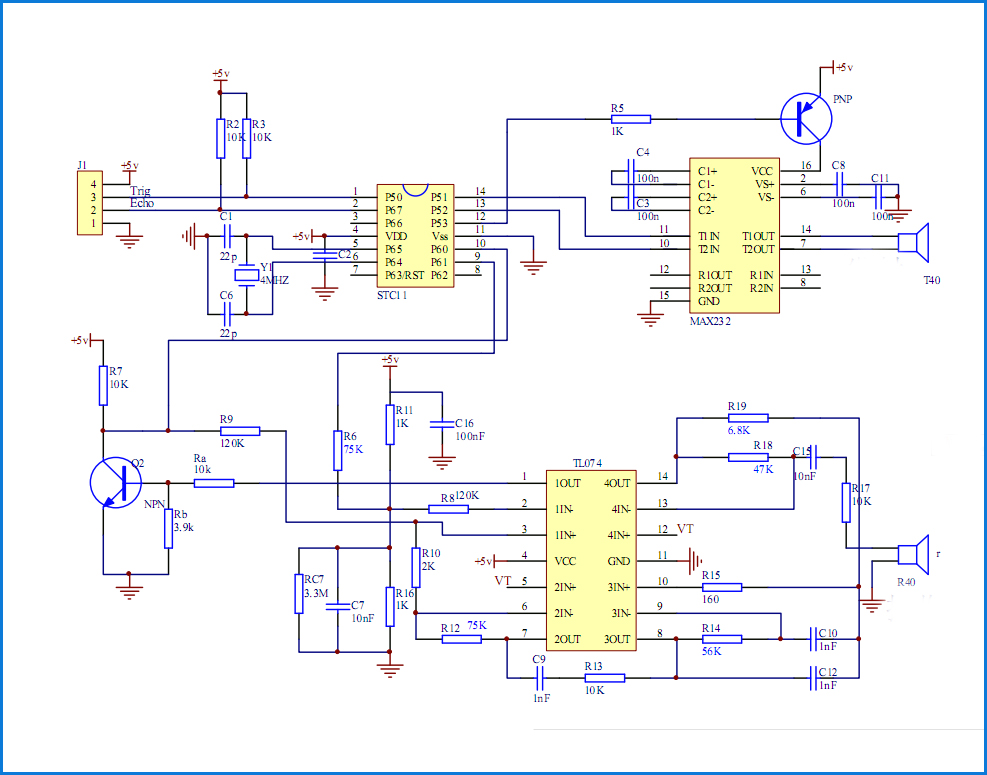
This nifty little sensor is simply ultrasonic distance sensor.  It measures distances by the 2 knob-like components (one transmits, one receives).  You can think of it as a speaker and a microphone combo, although the soundwave (40kHz or 40000 times per second!) it sends will not be audible by humans.  So let’s look at the schematic of this sensor:

We won’t go into details of all the components in the schematic in this lesson fo the crash course, but will cover another major component present in almost all circuits, and that is the capacitors (shown in the schematic as 2 straight lines with a gap and labeled with a C_ where the underscore is a number of the capacitor).  There is sometimes confusion on what a capacitor is for beginners, and most of the time I hear people saying that a capacitor holds current.  This is not true, a capacitor simply is a storage of energy. In a way, a capacitor is like a rechargeable battery in the sense that you can charge it and discharge it.  One use of capacitors that is common in almost all circuits is the idea of a bypass capacitor.  Read any datasheet for any IC (integrated circuit), and chances are in the design recommendations, it will tell you to place a bypass capacitor as close to the power source input as possible.  Why?  Because a bypass capacitor is a quick and easy way to eliminate some noise on the DC signal in.  

There are different kinds of capacitors out there, and there is a lot of already useful information on the web to continue your research of them, but this site sums it up perfectly: https://www.explainthatstuff.com/capacitors.html


Moving on from the schematic, you see 3 rather large boxes with several connections into them.  These are the 3 major components that do all the calculations for you so the module can provide the answer the user would want to know, how far away is that object?


  • STC11F – This is another microcontroller and is the brain of the module (similar to the Atmega328 is to the Arduino).  It takes in a user input, and sends out very specific user output on the pins.  If you are interested in learning about this microcontroller, the datasheet can be found here: http://www.stcmicro.com/datasheet/STC11F-10Fxx-en.pdf)
  • MAX232 – This part is driving the transmitter of the ultrasonic wave.  It is connected directly to the transmitter and it takes it’s instruction from the STC11F
  • TL074 – This is an operational amplifier IC (op-amp for short).  This takes in the input from the ultrasonic receiver, and as the name suggests, takes a very low amp (current) input signal, and outputs a larger amp output (current) signal.  Op-amps are very common in things like speakers.

There are also a ton of resistors on the board, and 2 other components known as transistors which we will cover in another lesson of this Arduino Crash Course.


Now that we seen the schematic, take a look of the actual module you have.  Look at all the components on the circuit board.  Can you see how the schematic closely resembles the parts on the circuit board? 

03

How Do I Trigger and Get Data from HC-SR04

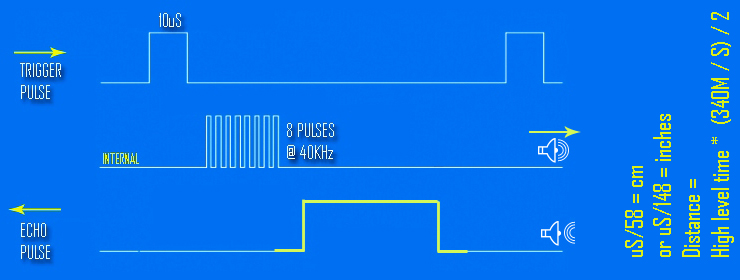
The interface of the HC-SR04 consists of 4 pins: VCC, Trigger, Echo, and Ground.   We should already know how to hook up the VCC and the ground (keep in mind, that this module has it’s own microcontroller, so we actually need to power it up as well, which is the reasoning behind the VCC and Ground).  The trigger pin is an input to the module (therefore an output pin from the Arduino) which basically tells the module to send a wave out.  To trigger it, you must set the Trigger pin HIGH for at least 10µ.  The microcontroller will then tell the driver in the module to send out a pulse (it actually sends out 8 pulses out at 40kHz).  The echo pin is output of the module (therefore your input), which will raise the line HIGH based on the formula of 58µS (.000058 seconds) per cm.  This chart sums the full lifecycle of a request (this type of chart is usually called a timing chart, and we will get very familiar with them in future lessons of this crash course):

Now you may be wondering why 58µ per cm.  Well this is tied to the speed of sound.  When the transmitter sends these pulses out, the receiver will only pick up on them if those pulses bounce off what’s in front of it, and make it’s way back to the receiver (and then through the op-amp, to the microcontroller, which then calculates the distance and sets the echo pulse out via the echo pin). 


There are limitations to this module.  The transmitter can really only send pulses roughly 800cm and since in order for the ultrasound receiver to pickup the pulses it needs to bounce off of something, that means it can only measure roughly 400cm ahead of it.  It also only has a measuring angle of 15º, so the object will need to be almost directly in front of the sensor, and the sensor works best if it’s on a flat surface.

04

Using Serial Communication

Remember in lesson 2 of this crash course, where we used pins 0 and 1 to connect the 7-segment display and it caused issues because those pins are also used as serial communication to upload the sketch onto the Arduino.  Well, if you keep pins 0 and 1 free from GPIO, you can also leverage them to get data back off the microcontroller and into a serial monitor (a nice serial monitor is included in the Arduino IDE).  What this means is we can leverage the Serial pins to write messages back to our computer that will be displayed on the Serial Monitor.  https://www.arduino.cc/reference/en/language/functions/communication/serial/ 

This makes debugging a little bit easier as we can send over statements of what the microcontroller is doing in human readable format so we can know exactly what state the Arduino is in.  

We will leverage the Serial interface in this lesson to write the distance an object is from the HC-SR04 sensor. 


05

Let’s Build

Hopefully as you were going through this lesson, you were thinking about how to wire this module up to your Arduino.  This wiring is much simpler than earlier lessons in this crash course, as you only need 4 wires (remember are leveraging the Serial interface to display the output):


06

Great! All Wired Up! Let’s Code!

Let’s go through what we need for this:


  • Pin 12 – Echo – INPUT into Arduino (OUTPUT from Module) 
  • Pin 13 – Trigger – OUTPUT from Arduino (INPUT into Module)

So we should be comfortable with the setup method now, but I am going to show you another way that is very common when working with developing for microcontrollers (or in C or C++ in general) and that is to used define statements:

#define trigPin 13
#define echoPin 12
void setup() {
  Serial.begin (9600);
  pinMode(trigPin, OUTPUT);
  pinMode(echoPin, INPUT);
}

First off, to simply connect to the Serial communication, we just call Serial.begin() function which takes the baud rate.  For arduino, you almost always want this to be 9600, because it can’t handle much faster communication speeds than that.

As you can see, we define trigPin to be 13 and echoPin to be 12.  We can now reference them in our code as such.  This makes code readability much better, especially when you get into larger and larger sketches for bigger projects.

Now let’s think about the loop.  We need to trigger the module by sending out at least a 10µ HIGH on the trigger pin.  After it’s triggered, we then need to read how long the echo pin is high for.  There is a function called pulseIn (https://www.arduino.cc/reference/en/language/functions/advanced-io/pulsein/) that will give us the number of microseconds that the pin was in the HIGH state for.  

Finally, we need to take that value of microseconds, divide it by 2 (since it is round trip time from transmitter -> bounce off object -> receiver) and then divide that by 74.1, to get the approximate number of inches.  If we wanted to calculate in cm, we would just need to divide by roughly 29.  

Finally we will write the distance in the Serial monitor:


vvoid loop() {
  delay(200);
  long duration, distance;
  digitalWrite(trigPin, LOW);
  delayMicroseconds(2);
  digitalWrite(trigPin, HIGH); 
  delayMicroseconds(10); 
  digitalWrite(trigPin, LOW);
  
  duration = pulseIn(echoPin, HIGH); distance = (duration/2) / 74.1;
  if (distance >= 200) { 
    Serial.println("Out of range");
  }
  else {
    Serial.print(distance);
    Serial.println(" inches");
  }
}}

As we can see here, we actually just print out of range if the calculated distance is beyond 200 inches, but we may want to drop that to be roughly 150 inches, as we may get some false readings too far beyond 400cm (which is approximately 158 inches).

Also, you will see we simply call Serial.print if we want to send data through the Serial interface (println function simply adds a new line character as well).

07

What’s Next

You are becoming a master at this! To further explore what you can do, try using a 7-segment display as the out instead of Serial.  You will have to get creative in how to display more than 1 digit, but that’s the fun part.  Also, instead of just constantly be triggering the HC-SR04 module every 200 milliseconds in the loop (delay(200), how about connecting a button that triggers the module.  You can configure this as an input into Arduino which then kicks off the process (sending a 10µ HIGH on the TRIGGER pin), or you can actually connect the button directly to the TRIGGER pin.  What happens if you hold the button down too long?  What happens if you quickly tap the button as fast as you can.  10µ is a very short period of time.


See you next time for the next lesson of the Arduino Crash Course